4.8 Chat with Documents
Use this feature to select documents from filings and analyze them directly - compare, summarize, or generate insights based on your selected documents.
Step 1: Find the relevant filings
Use the Filing Search feature to locate the filings that contain the documents you want to analyze.👉 (Need help? See section 4.1: Searching for Filings or section 4.3: Text search)
Step 2: Select Documents
Once you've found a filing:
- Click "Add to Chat" next to any document you want to include.
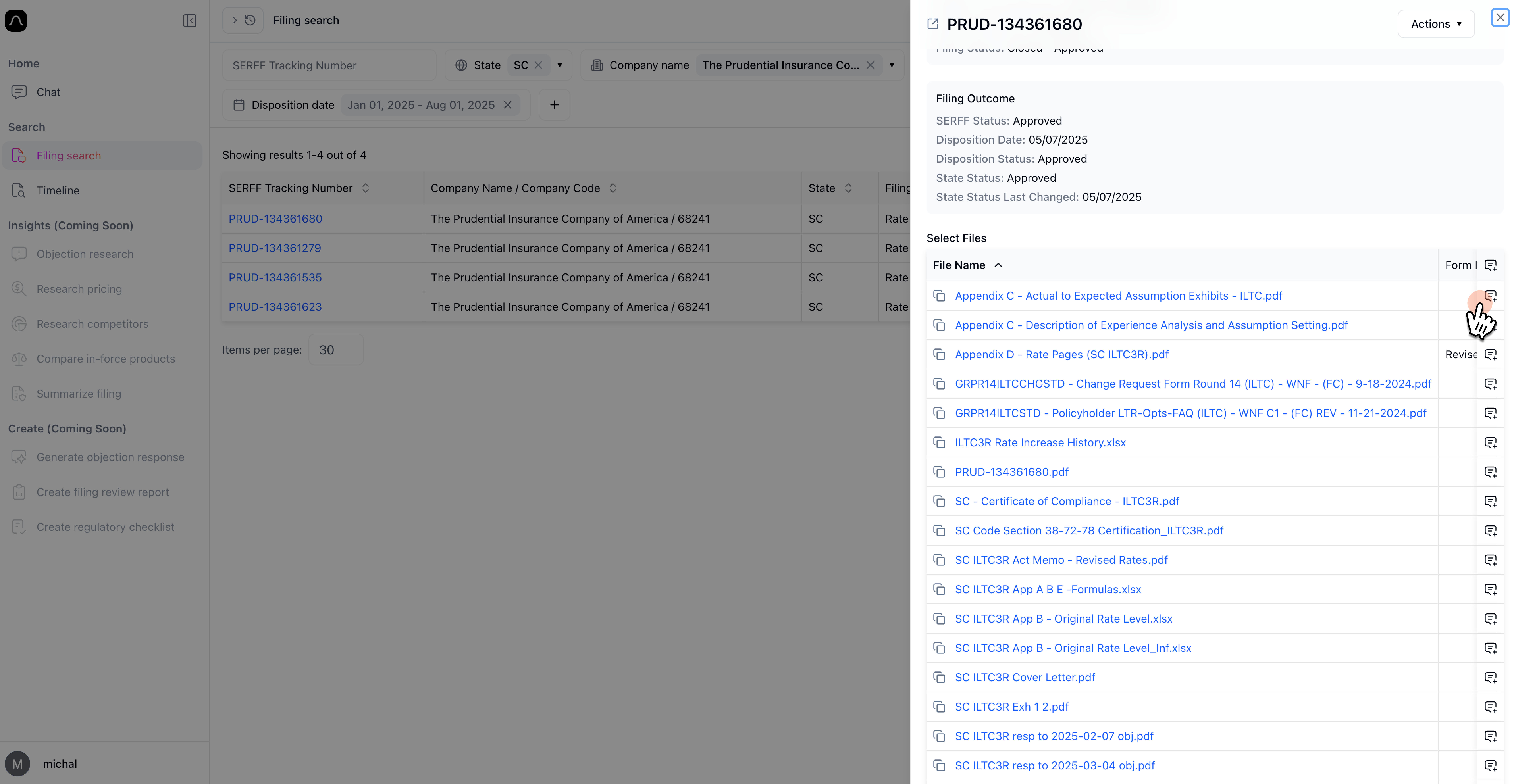
- To add all documents in a filing at once, click "Actions" (top-right corner), then choose "Add all documents to Chat".
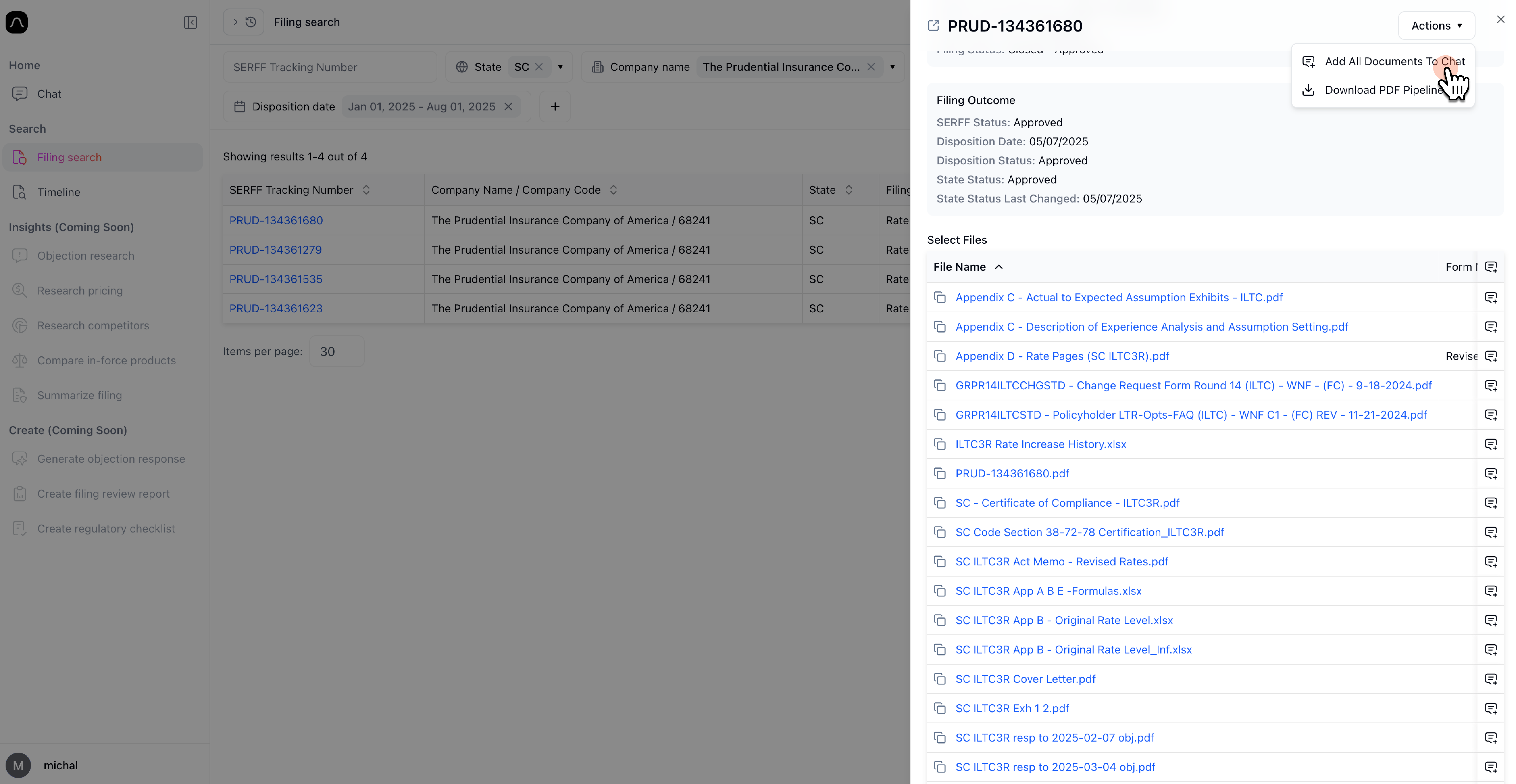
📝 Blaise Tip: You can only upload text-based files to the chat right now — such as .pdf, .docx, .txt, .md or .jason. Other file types, like Excel spreadsheets or images, aren't supported at the moment. To check, just look at the file name ending before uploading.
After adding a document, you'll see a blue box at the bottom of the screen confirming it was successfully added to the chat.
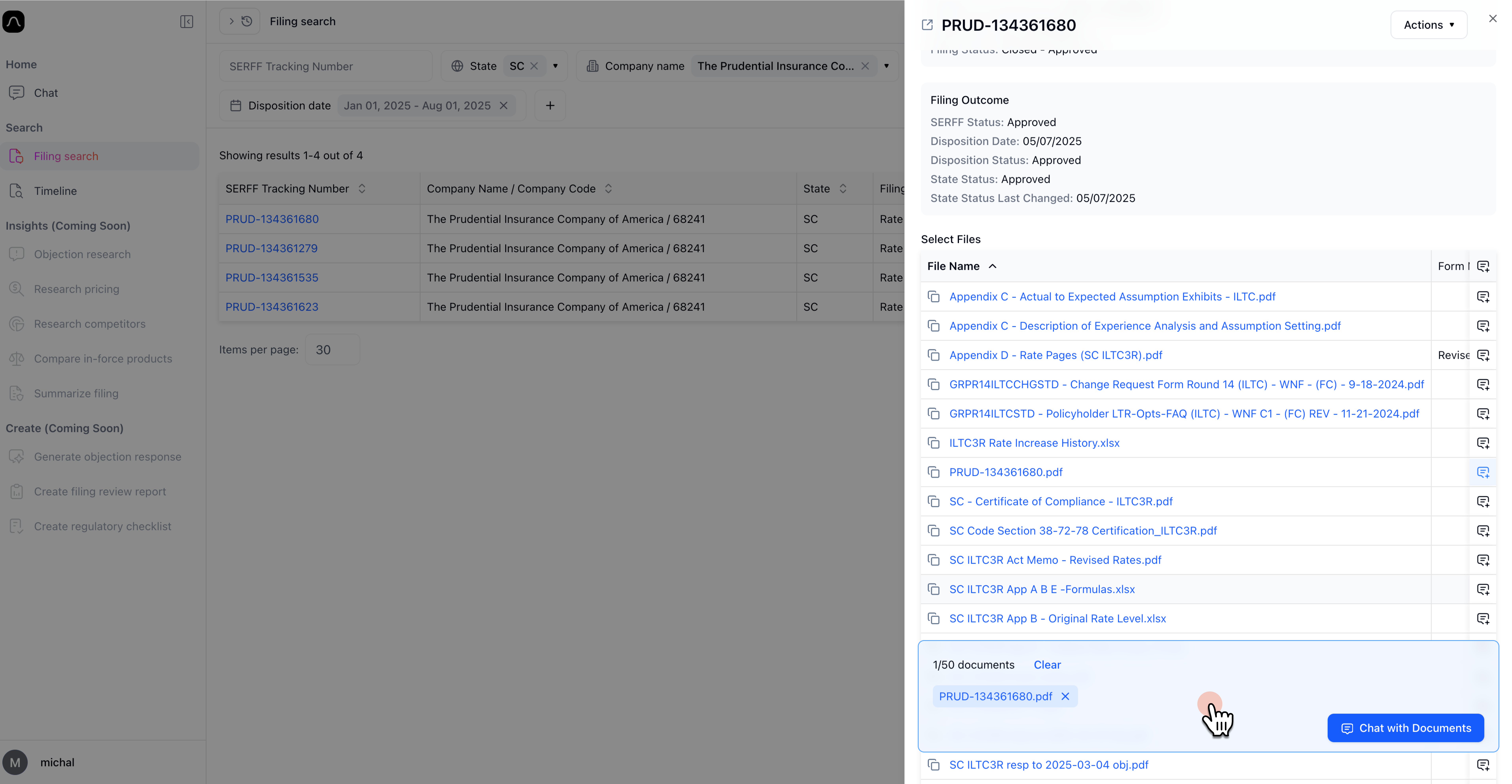
Step 3: Add More Documents (Optional)
You can add up to 50 documents to a single chat!
To search for more:
- Close the current filing window by clicking the "×" in the top-right corner.
- Start a new search and repeat the steps above to add more documents.
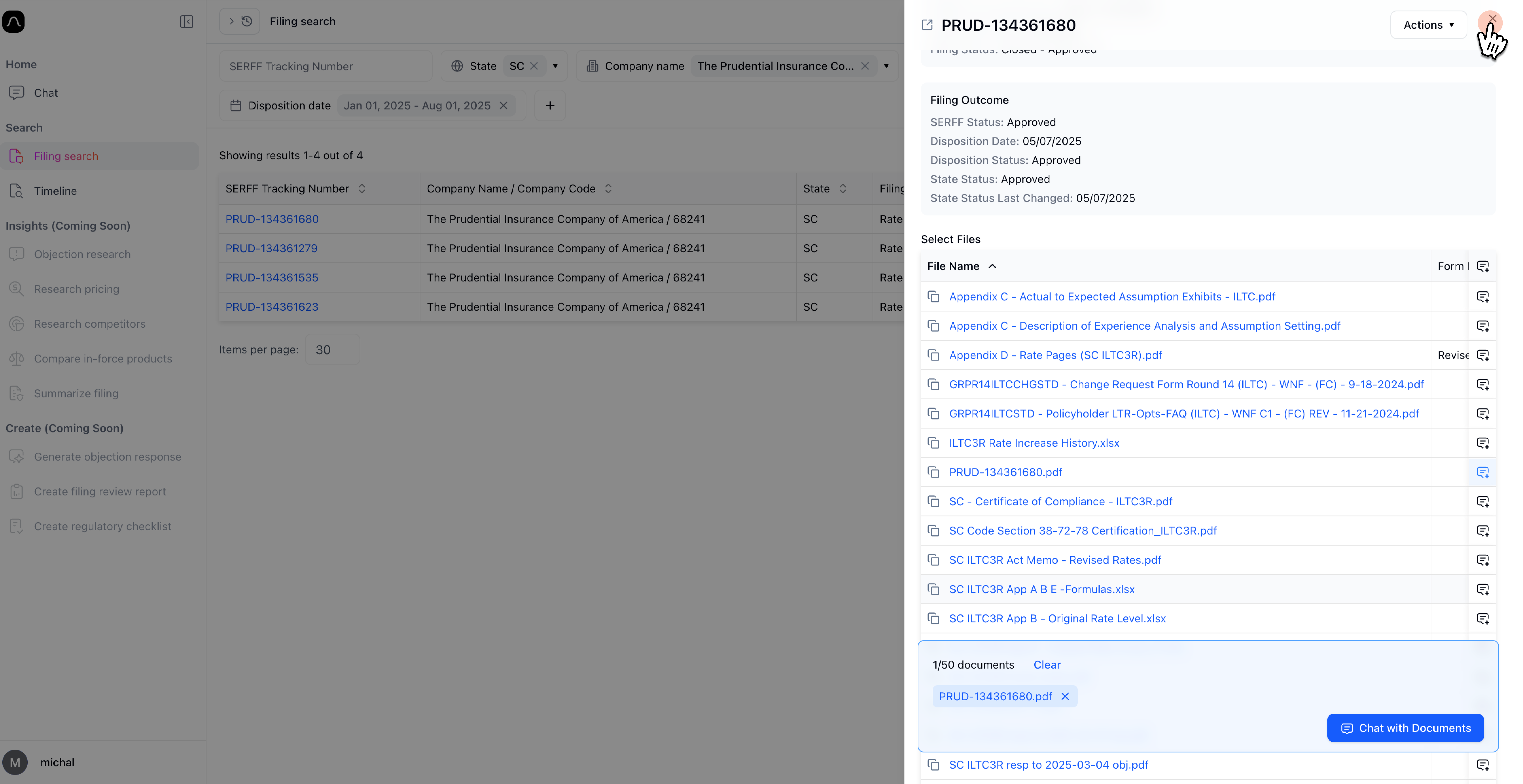
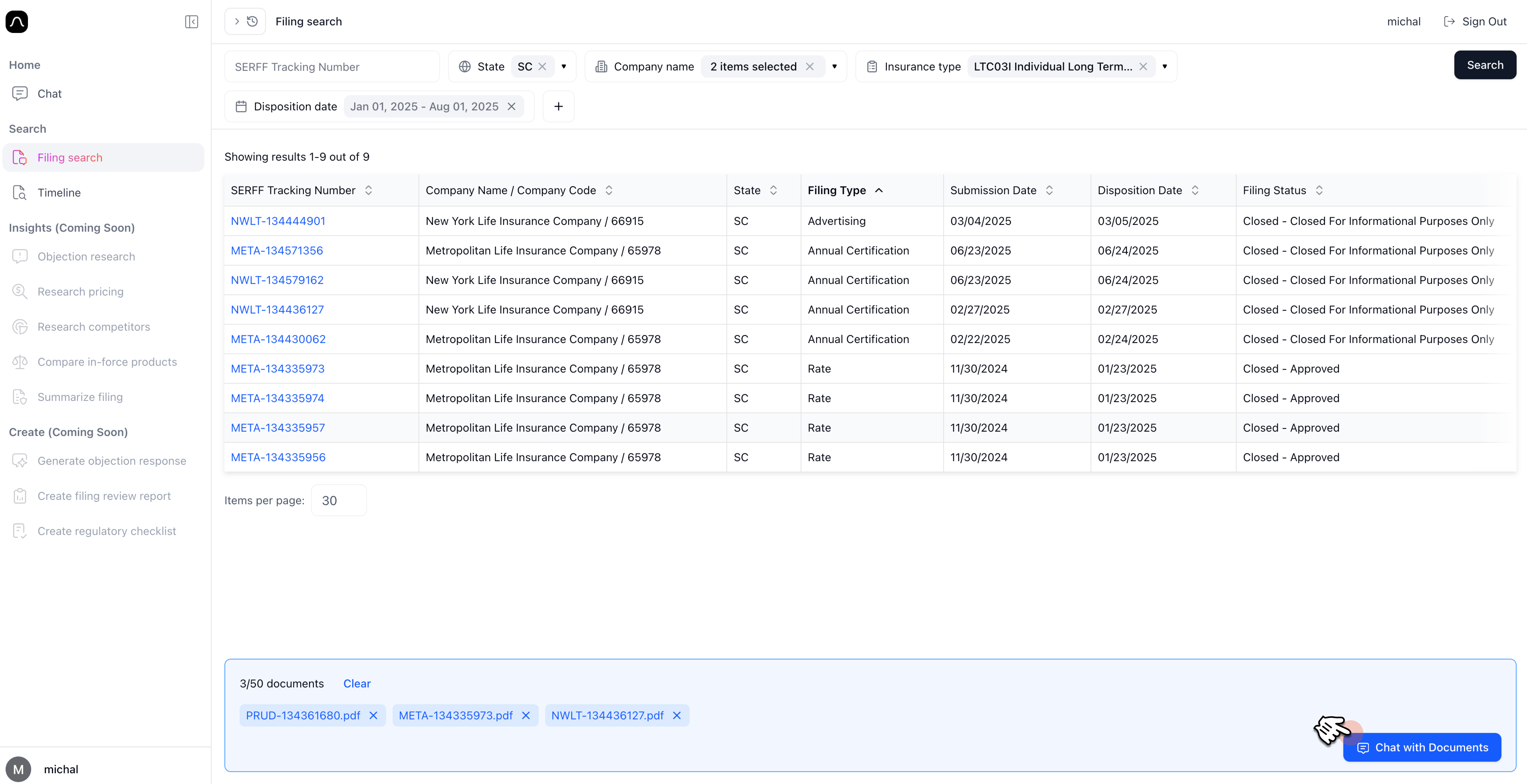
The "Chat with Documents" blue box will remain visible while you search and add additional documents — no need to worry about losing progress.
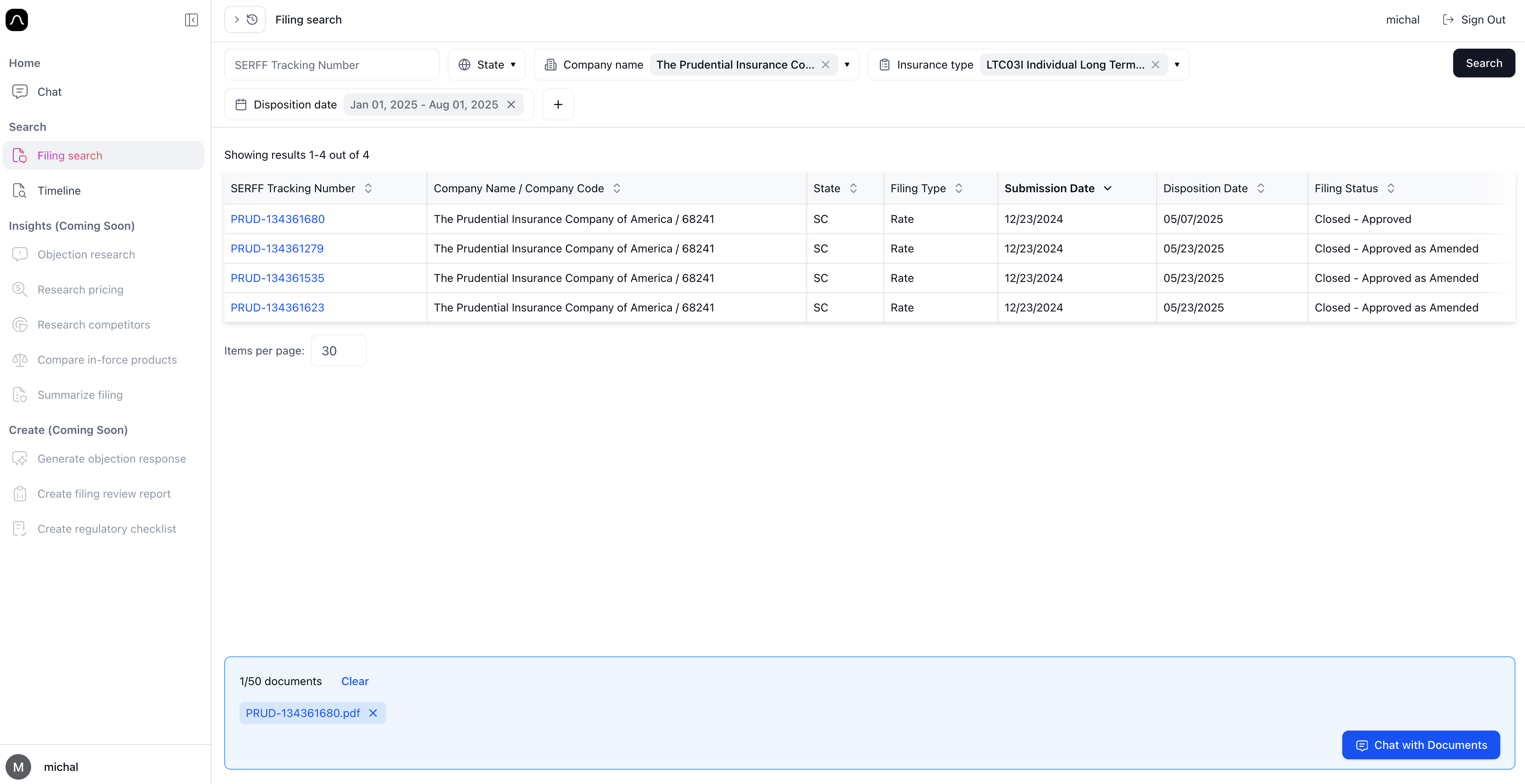
📝 Blaise Tip: To start a new search, click the "×" next to any selected filter to clear it. Then go ahead and apply your new filters.
Step 4: Start the Chat
Once you've added all the documents you want to analyze, click the "Chat with Documents" button in the blue box to enter the chat environment.
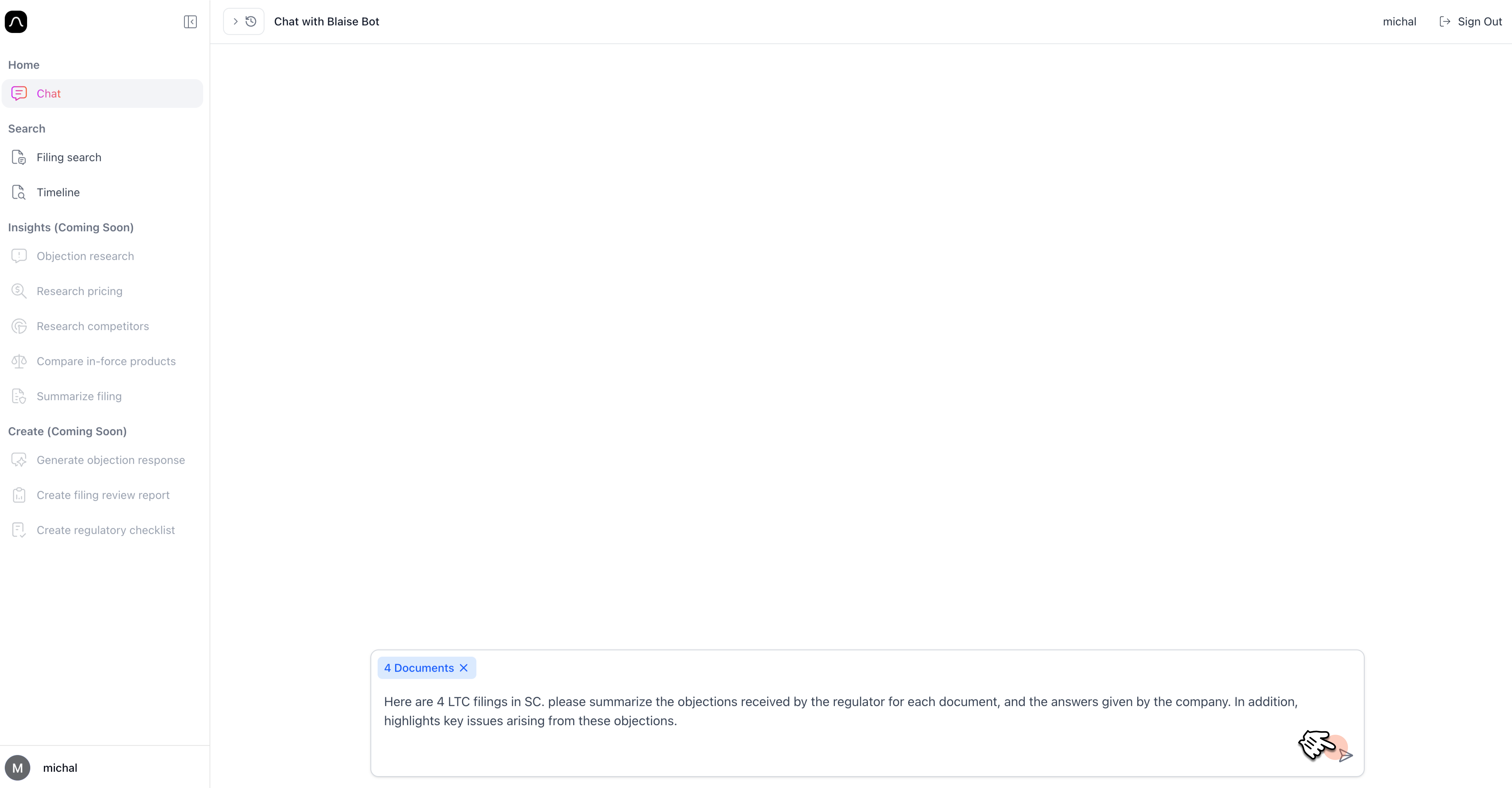
Step 5: Ask your question
You're now chatting with context! Blaise will understand the contents of the documents you've added.
You can ask questions like:
- "Here are 4 LTC filings in SC. Please summarize the objections received from regulators for each document and the company's responses. Also highlight any recurring issues."
- "Attached are 5 marketing materials from different companies. Please compare them and present a table showing the date, content, target audience, and main messages per document."
- …and more!
Click Send -and let Blaise work its magic! 🤩
Having trouble chatting with documents? We're here to help -just email us at support@getblaise.com