2.2 Login with Temporary Password + Authenticator App
This method appears automatically if your organization uses password + MFA authentication.
Go to https://prod.getblaise.com
Blaise Tip: Create a bookmark on your browser for easier future access! Just click the start icon ⭐located in the address bar (right side)
-
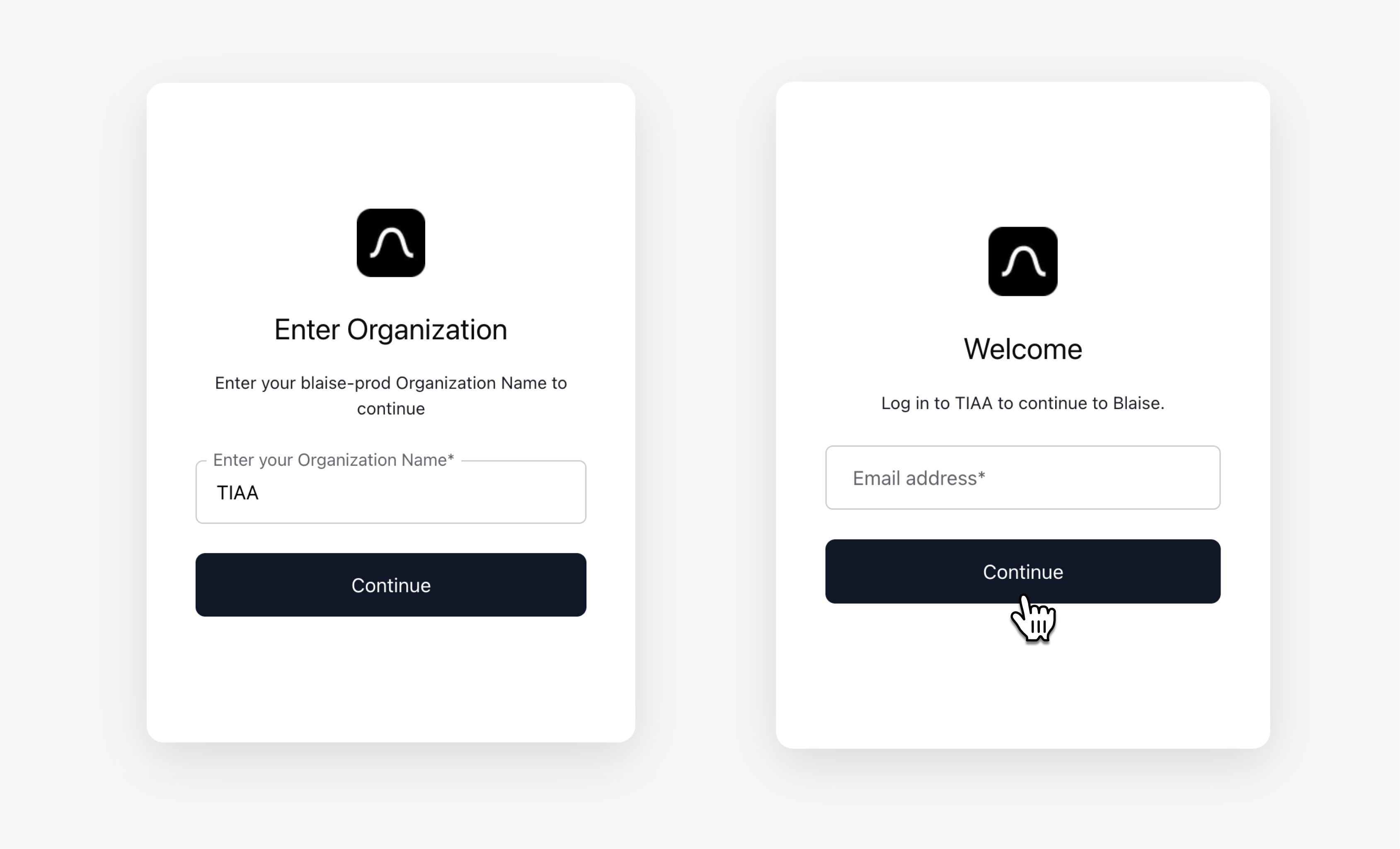
Enter your Organization Name on the login screen.
-
Enter your email address and click Continue.
-
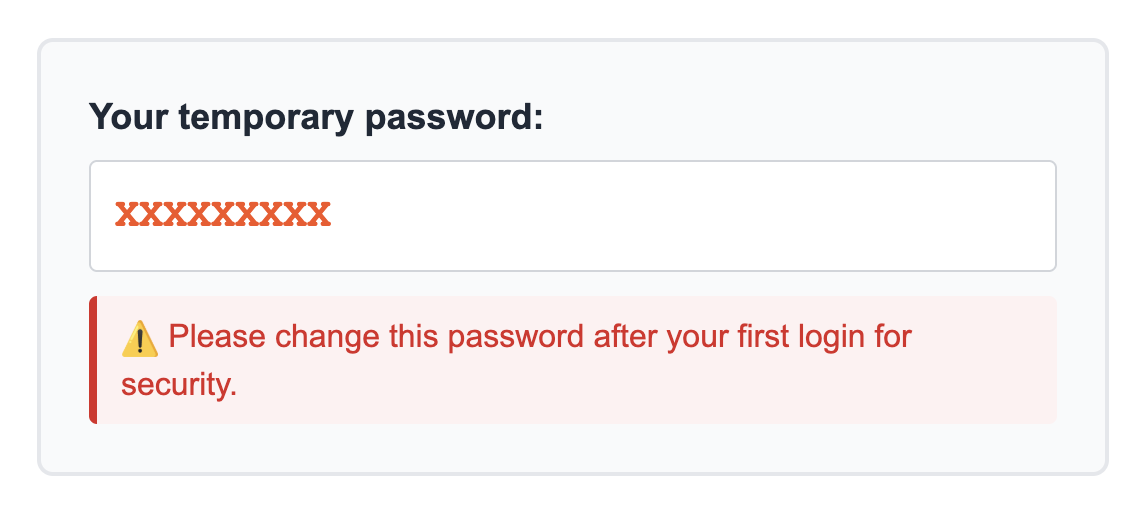
Enter the temporary password you received by email.
-
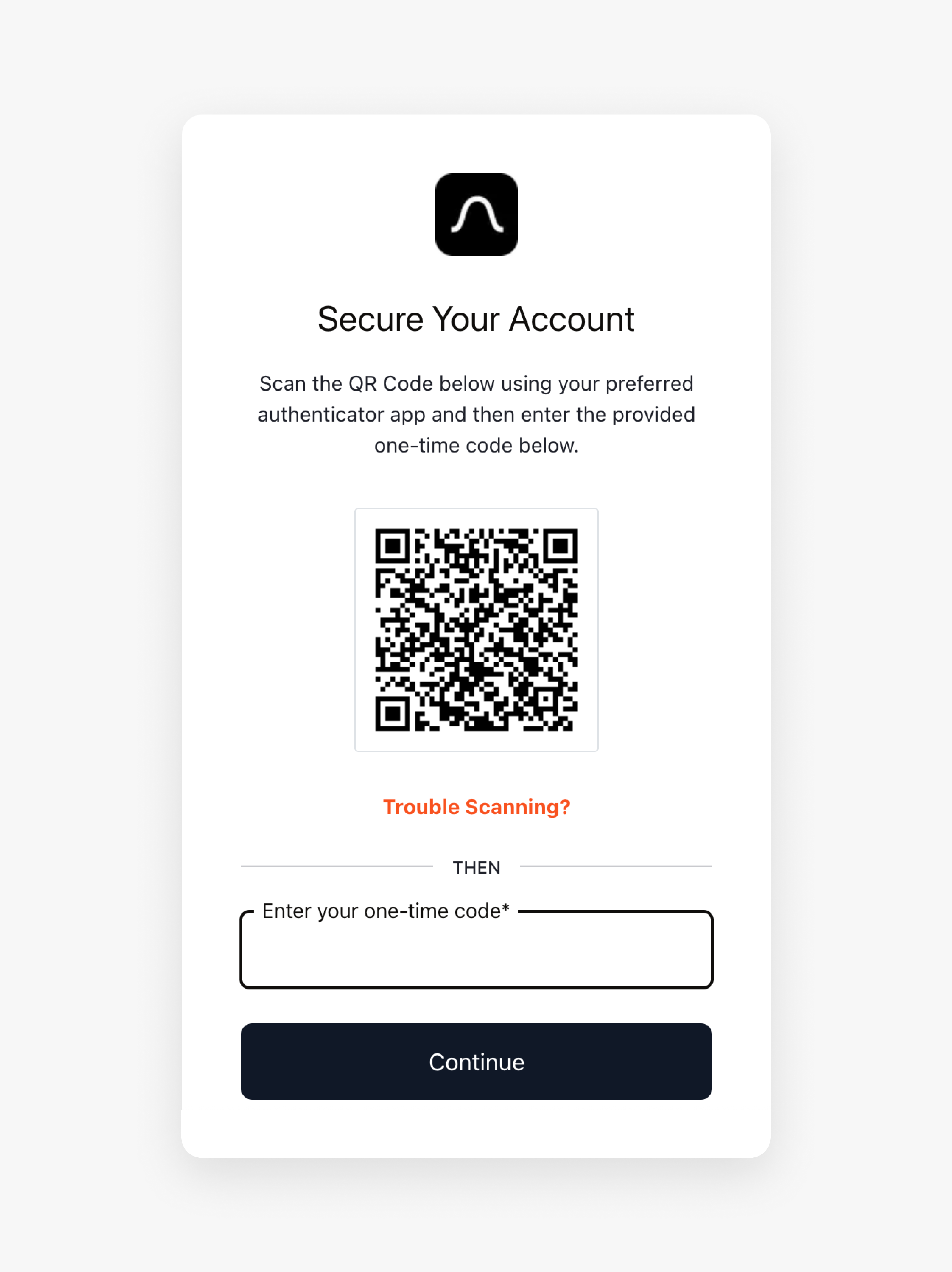
Complete authentication by scanning the QR code with your organization's authenticator app, then entering the one-time code shown in the app.
-
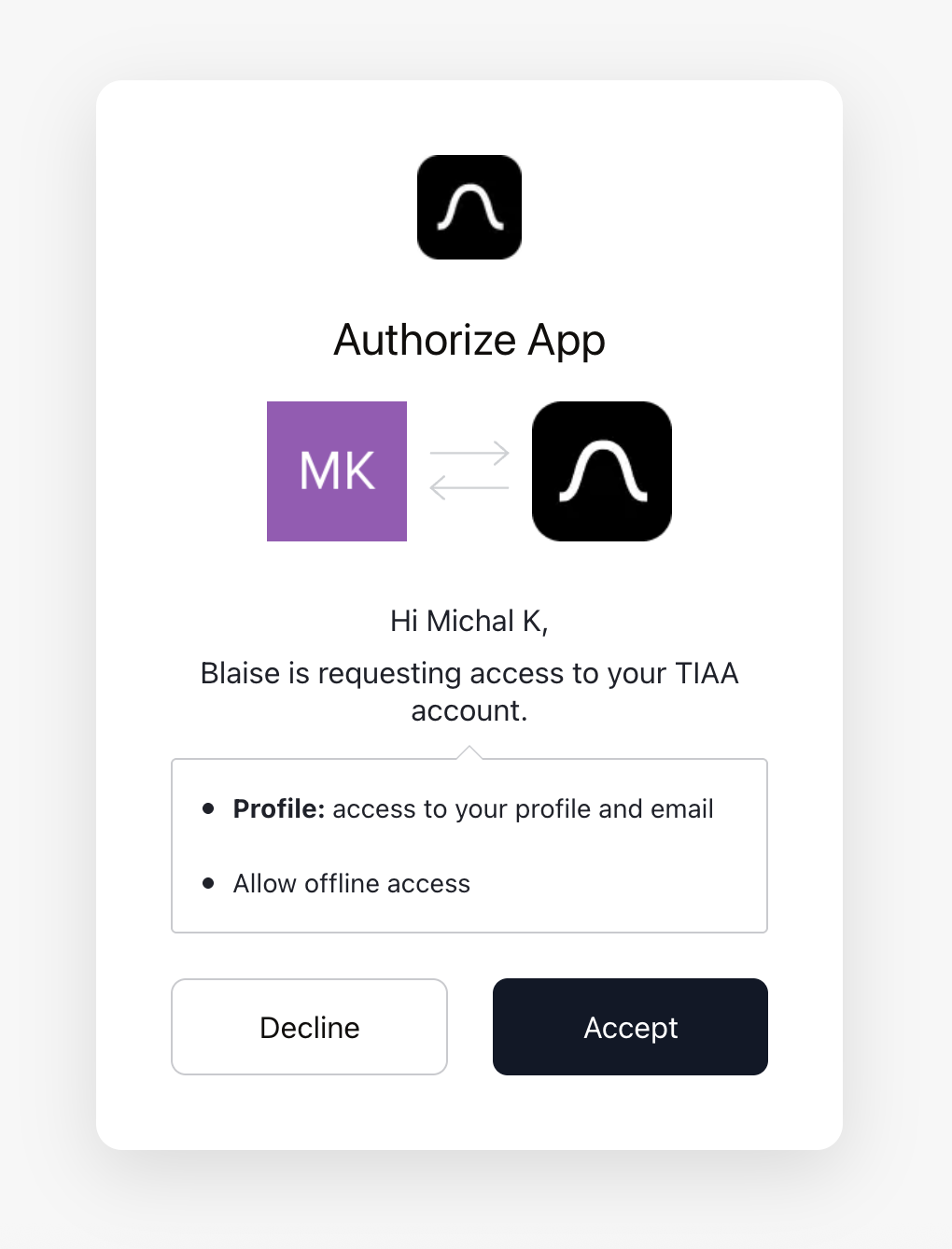
Approve access when prompted. This only authorizes Blaise to see your name and email for account setup. Blaise cannot access your inbox or any personal data.
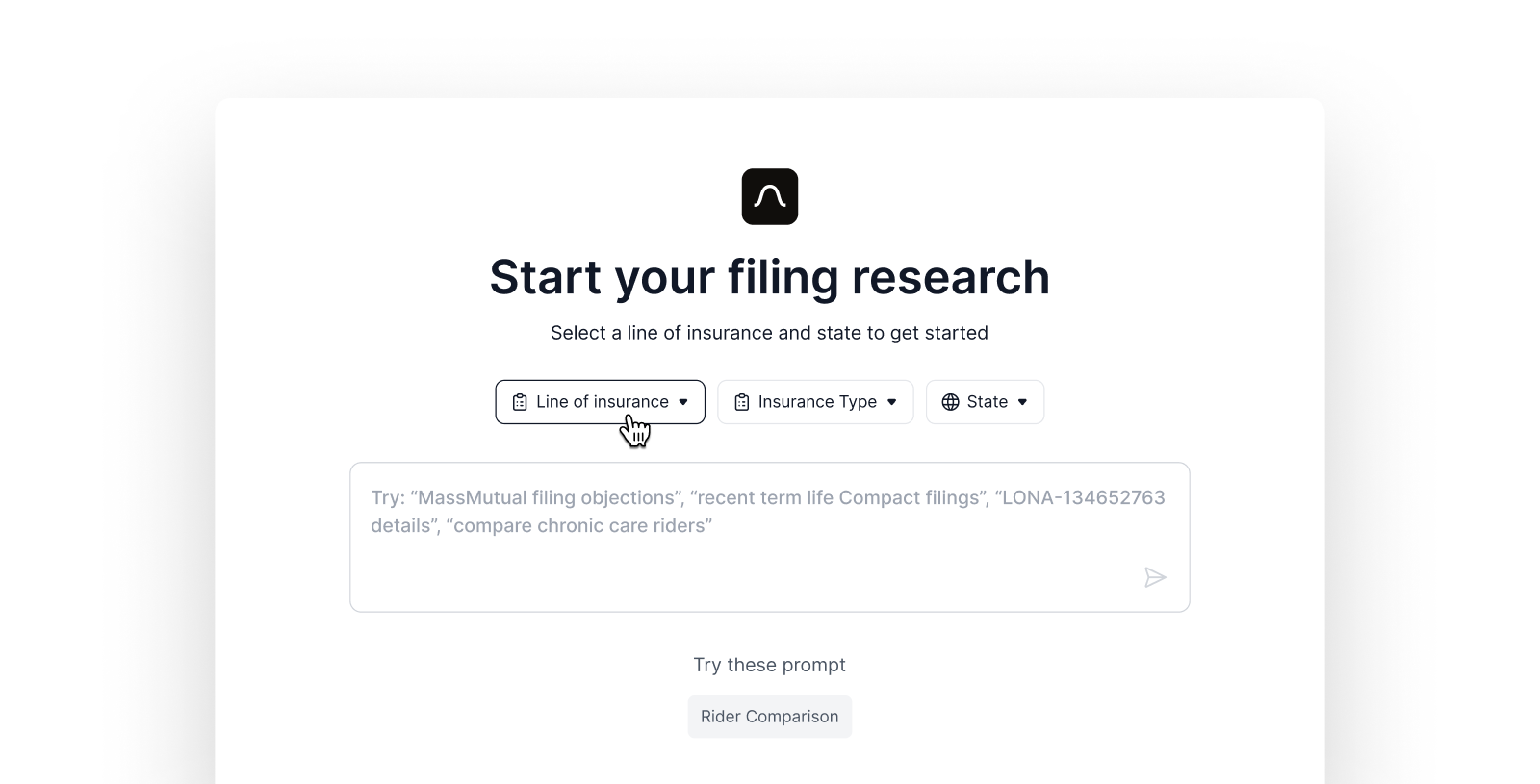
🎉 You're in! You can now search filings and get powerful insights.
Trouble logging in or seeing unexpected behavior? Contact us at support@getblaise.com